
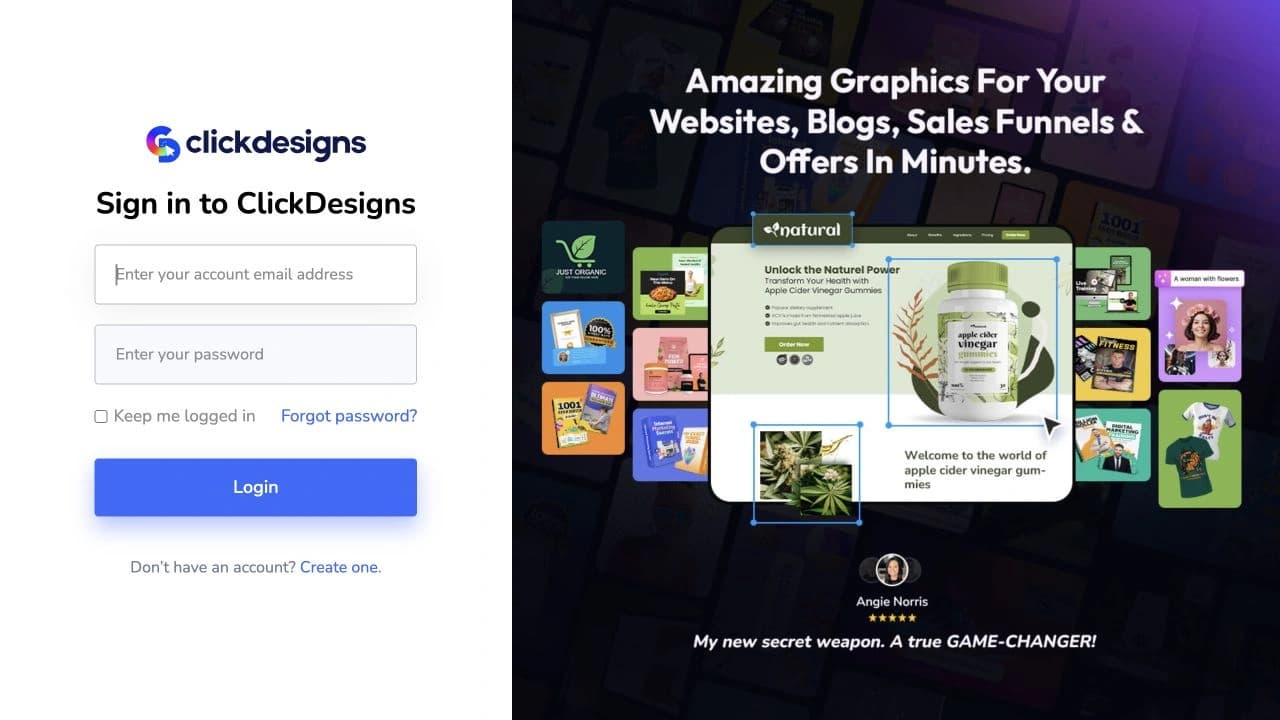
Already bought ClickDesigns? Go directly to the official login at https://app.clickdesigns.com/login. Use your ClickDesigns account email and password—not your payment-platform password. If your details are missing, recover your account before considering another purchase. This guide checks the public access screens and official support documentation; it does not collect credentials or promise that a payment automatically resolves every access issue.
Direct Access: The 10-Second Fix
Open the official ClickDesigns login, confirm the address in your browser and sign in with the credentials issued for your software account. Bookmark that login page instead of a promotion, training-registration page or search result. The vendor's account-access instructions identify this same address.
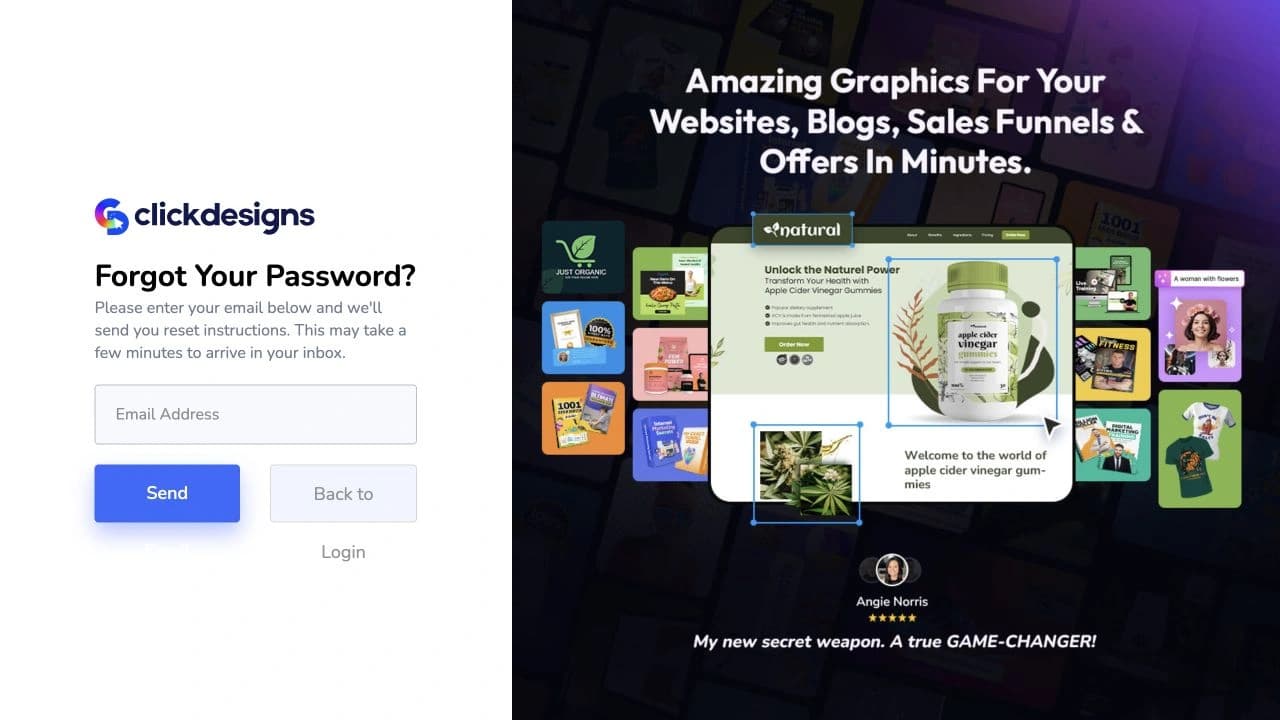
If you cannot remember your password, use the official password recovery page. The public form asks for an email address and sends recovery instructions. Do not enter a receipt password into an unrelated website or pay someone to unlock your account.
You may have searched for “ClicksDesignGX Login.” The verified public portal is branded ClickDesigns; that unusual spelling is not proof of a separate software product or official portal. Use the verified destination above rather than guessing domains from a misspelled search.
Existing Account or New License?
A login error is a support problem, not a reason to buy a second license. If you have never purchased, read our full ClickDesigns review and benchmark before choosing an offer. Our review covers ClickDesigns X; existing ClickDesigns accounts and a newly advertised X license should not be assumed to have identical access rights or delivery instructions.
New Buyers: Find the Email and Purchase Access
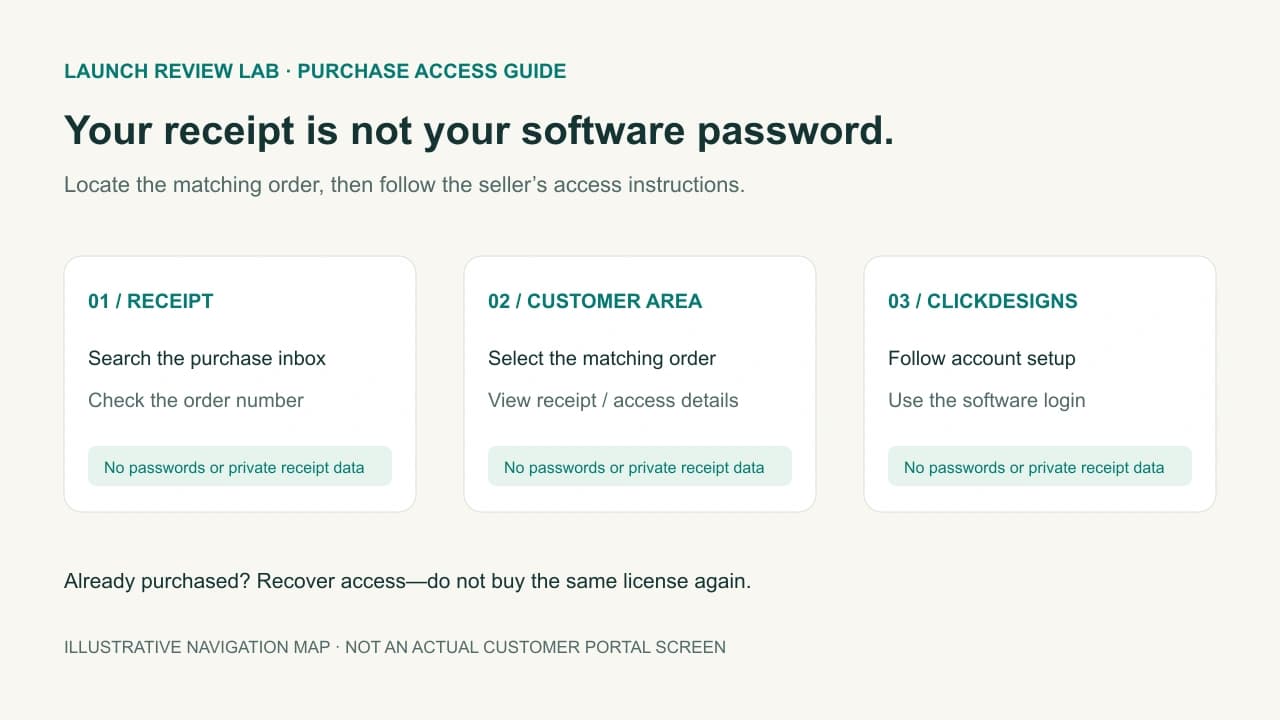
Step 1: Search the Inbox Used at Checkout
Search for ClickDesigns, your order number and [Receipt]. Check Spam, Promotions, archived messages and any alternate address you entered when paying. Search the actual purchase inbox before assuming your everyday login email was used.
The vendor's missing-login guidance distinguishes a completed payment from a pending bank authorization and advises checking the inbox and spam folders. Allow a few minutes for the access email, but do not treat a pending charge or a welcome message as proof of a successfully activated license.
Step 2: Locate the Receipt in the Customer Area
If you purchased through JVZoo, open the JVZoo customer area and use its own account or receipt-recovery instructions. In the purchases list, select the matching ClickDesigns order and view its details or receipt. Look for the product-access control—often labelled Access Your Purchase—and follow the seller's delivery instructions. Menu wording and button colors can vary; the matching order matters more than a green button.
The receipt-based customer portal explains that receipt emails begin with [Receipt] and are sent from support@jvzoo.com. If the original receipt cannot be found, the current Find My Order tool provides an order lookup route. Only submit your purchase details on the official service, not in our blog comments or to an unsolicited support contact.
The receipt proves the transaction and points to delivery or seller support. It is not the ClickDesigns editor. A customer-portal password, payment email and software-account password may be different; do not assume credentials are interchangeable.
Step 3: Complete the Seller's Account Instructions
Return to the official software login after following any account-setup step in the delivery email. If an activation link is present, verify its destination before using it. Enter the software-account email, check for accidental spaces and use the current password.
Once inside, check that the account and license match your purchase before beginning a project. We do not assume every new buyer sees a particular workspace wizard. For the design workflow rather than access recovery, use our ClickDesigns X workflow guide.
Invalid Email or Password: Recover the Right Account
Check the Email Before Resetting
Confirm the exact address on the order or onboarding email. Avoid copying a trailing space. If a password manager suggests an old login, inspect its saved username and choose the correct account rather than repeatedly submitting guessed combinations.
Open ClickDesigns password recovery, enter the email used for the software account and select Send Email. The page says instructions can take a few minutes to arrive. Check the inbox and spam folders, then follow the latest valid recovery message. Do not forward reset links, passwords or verification codes to someone offering unofficial help.
If the Message Still Does Not Arrive
Check spelling and the purchase address again, then contact official support with the order details. Repeated reset requests are not proof that an account exists, and a generic confirmation message does not independently establish license activation. If a link has expired, request a new one and avoid using an older message after changing the password.
If your account asks for a two-factor code, use your configured authenticator or a legitimate saved backup code. Ask support about account recovery if those are unavailable. Do not disable security, share a code with a third party or assume a password reset bypasses two-factor verification.
An Upgrade or OTO Is Missing From the Dashboard
First verify that the upgrade transaction completed and note the exact offer name. Confirm whether it was purchased under the same email as your existing software account. A receipt for a separate add-on does not guarantee every feature will appear in every menu or that a bundle includes a particular service.
The vendor's upgrade instructions describe Profile → Account Access in the member area. Check that area where available, then sign out and sign back in to refresh the session. Interface labels can change; if the purchased entitlement remains absent, ask support to reconcile the order with the correct account.
Use our ClickDesigns X pricing and upgrade guide to compare offer names, not to bypass a purchase-dependent upgrade path. Do not buy the same upgrade again just because a feature is missing. We have not verified a universal “force refresh license” button or a safe local-storage command that activates paid access.
For readers who have not purchased, an Agency or Pro label is not automatically the right next step. Verify the currently available offer and its entitlements. Our tracked link points to the configured primary ClickDesigns X destination, not a direct paid-OTO activation link or a guaranteed discount.
Redirects, Autofill and Browser Problems
Login Sends You to a Marketing Page
Check the address you opened. A bookmarked promotion or the login screen's account-creation link can lead to a sales page rather than the editor. Open the verified /login address directly. If a purchase-access link continues to redirect, record the destination and ask support to inspect your order instead of cycling through unofficial mirror sites.
Autofill Uses Old Details
Remove the mistaken autofill selection and manually enter the correct account email and password. If a different browser or a private window works, investigate the original browser's stored session and extensions. A private-window check is a diagnostic comparison, not a required daily login method.
A Form or Button Does Not Respond
Try an up-to-date browser and check whether scripts or essential site cookies are blocked. Temporarily pause a relevant content-blocking extension only for the verified ClickDesigns site, test, then restore your setting. Do not disable antivirus, certificate checks or browser security to make a login work.
Before clearing site data, save or export any open work where possible and close the editor. If necessary, remove data only for the affected ClickDesigns origin, not every browser account. This can sign you out and discard browser-held state; it does not create a license or restore an unpaid upgrade. Stop if you are unsure what will be removed.
Avoid Fake “ClicksDesignGX” Portals and Cracked Downloads
ClickDesigns' documented access is a browser account. A third-party APK, cracked desktop installer or shared-password offer is not the official login route and does not establish valid cloud access. Check the full HTTPS address before entering credentials, and do not bypass a browser security warning.
A polished logo or a sponsored search result is not proof that a portal is genuine. Keep recovery links private and reject requests for remote access to your computer. If you entered credentials on a suspicious page, secure the affected accounts using their official recovery tools and seek support through verified channels.
For a new purchase, a legitimate license is the appropriate access path—not a crack. That does not promise permanent updates, uninterrupted service or inclusion of every upgrade. Judge the current written offer and delivery terms, not a third party's “lifetime unlock” claim.
Contact Official Support With a Useful Report
Use the ClickDesigns knowledge base and its ticket instructions. The ticket page provides the vendor's email/contact route; use the contact shown there or the product-support details in your verified receipt. If you can already sign in, use the application's support option where available.
Include these details privately in the official ticket:
- The purchase email and exact product or upgrade name.
- The order/transaction number and whether payment completed.
- The login URL, error wording and when it happened.
- Browser/device details and the safe checks you already tried.
- A screenshot with passwords, reset links, codes and unrelated personal details removed.
Ask the team to confirm which software account owns the order and which entitlement should be active. If the receipt itself is missing, use the payment service's order-recovery channel rather than asking the software vendor to guess a transaction.
ClickDesigns' ticket instructions promise a response as soon as possible, not a universal 24-hour priority resolution. We cannot guarantee the response time or access outcome. Keep one clear ticket thread and retain the order records instead of posting sensitive receipt details publicly.
New Buyer Decision: Access, Terms and Next Steps
If you already purchased, continue the recovery/support route above; another purchase is not the fix. If you are considering a new license, check the available ClickDesigns X offer and its delivery instructions. As of this October 12 guide, our X review remains pre-launch; an accessible legacy login screen is not proof the new X checkout is open.
The vendor's published ClickDesigns refund policy describes a 30-day period and notes that transaction/refund fees are the buyer's responsibility. Confirm the policy applying to the exact offer before paying. We have not tested refund execution, and login reliability alone is not proof of a risk-free purchase.
Read our complete ClickDesigns X assessment for the design use case. For alternatives by actual task, explore our ClickDesigns X vs Canva comparison; for course packaging, use the course-creator guide. If your need is Reddit prospecting rather than graphics, our BuyerEngine AI review covers that separate category—not a login alternative.
Frequently Asked Questions
Where are my ClickDesigns login details sent after buying through JVZoo?
Look in the inbox used at checkout for the ClickDesigns onboarding message and the purchase receipt, including Spam and Promotions. The payment-service receipt and software login can use different credentials. If payment completed but the access message is missing, use the official recovery page or contact the seller with the order details.
Why does the login page redirect me to a sales page?
You may have opened a promotional URL or selected the account-creation link instead of the software login. Open https://app.clickdesigns.com/login directly and confirm the address. If the same problem persists through your verified purchase instructions, record the destination for official support; do not assume paying again fixes it.
How do I reset a forgotten ClickDesigns password?
Open https://app.clickdesigns.com/forget and enter the email belonging to the software account. Check for the latest reset instructions in your inbox and spam folders, allowing a few minutes for delivery. If the address is not recognized or the message never arrives, ask official support to check the account associated with your completed order.
How do I access an upgrade that is not showing in my account?
Verify the exact upgrade purchase, completed payment and account email, then inspect Profile and Account Access where that interface is available. Sign out and back in before asking support to reconcile a missing entitlement. Clearing browser storage or buying the same upgrade again is not a verified license-activation solution.
Who should I contact if my account remains locked or unrecognized?
Use the ClickDesigns support site or the seller-support contact in your verified receipt for software-account problems. Use the payment service's customer portal or order lookup for missing transaction records. Send order details privately, never passwords, reset tokens or authenticator codes; resolution time is not guaranteed.